Monitoring bots & trades
This guide explains how to read bot cards, P&L charts, logs, and trade details.
Trading bots
Trading bots are automated strategies that run continuously and execute trades based on configured rules. The dashboard has two main bot-related screens:
Bot list page
Desktop

Mobile
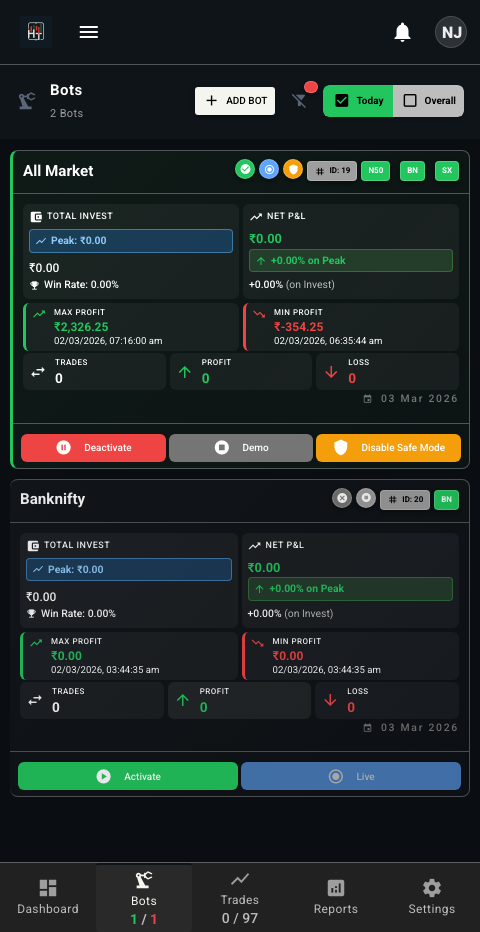
On the bot list you can:
- See all configured bots in one place.
- Quickly scan status, mode, and P&L for each bot.
- Filter by status, bot type, date, or performance.
- Click any bot card to open its detailed view.
Bot detail view – actions & features
Desktop
Mobile
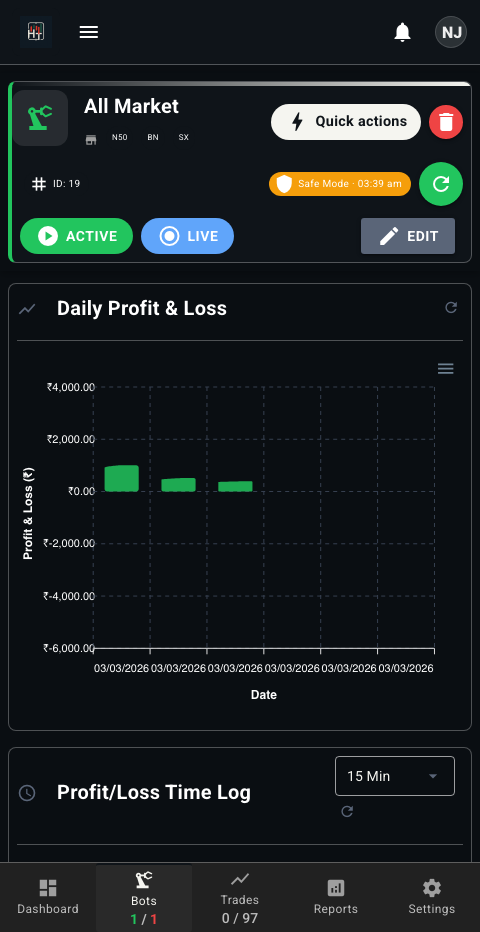
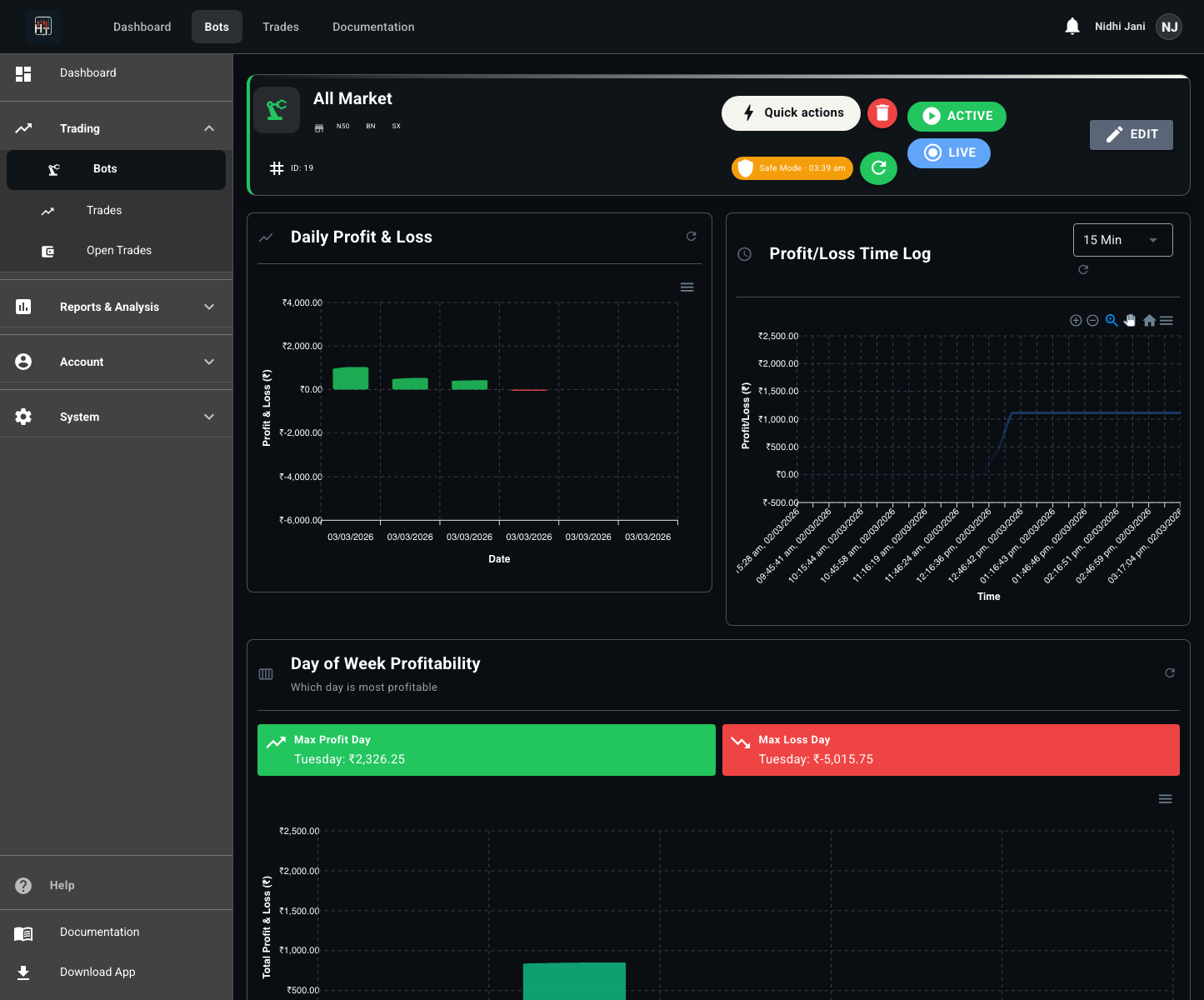
On an individual bot page you will typically find:
- Bot status toggle – start/stop the bot.
- Live / Demo mode – switch between live trading and demo.
- Safe mode – pause new lot additions while keeping existing positions.
- Inline editing – adjust key parameters (like quantity or risk) without a full form.
- Suggested scripts – see recommended CE/PE scripts and lot sizes.
- Refresh action – manually refresh bot statistics and trades for this bot.
Bot charts & analytics
The bot view often includes dedicated analytics:
- Daily P&L chart – day-by-day profit and loss for this bot.
- Capital growth chart – how capital allocated to the bot evolved over time.
- Day-of-week profitability chart – which weekdays perform best.
- Suggested scripts section – expanded view of the current suggestions.
Each chart is interactive and can be refreshed. Use them to understand the bot’s behavior and whether it should be scaled up or tuned.
Bot trades & logs
The bot detail page typically has:
- A filtered trades list specific to this bot (with filters for CE/PE, buy/sell, P&L, status, date range).
- Trade cards with key information and a link into the full trade view.
- Execution logs showing each bot run, duration, and whether trades were triggered.
- An option to show only logs with trade events.
Trades
Trades are individual positions opened and closed by your bots. You usually work with them from a global trades list and a trade detail view.
Trades list page
Desktop
Mobile
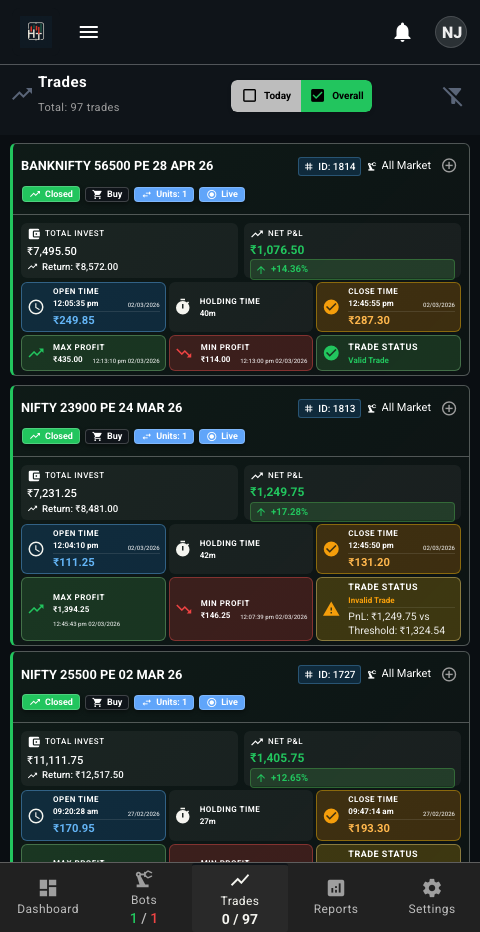
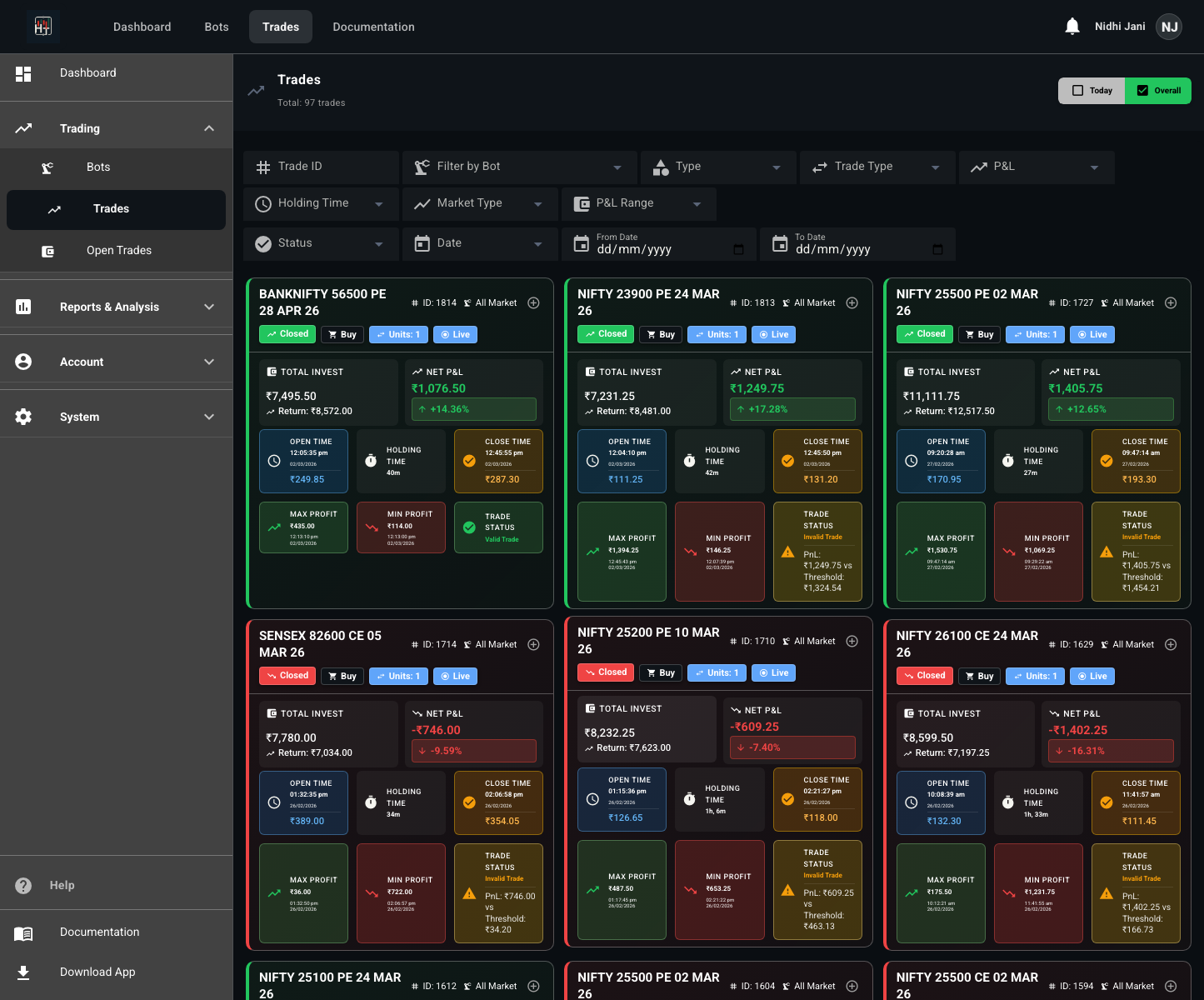
The trades list lets you:
- View trades across all bots in a single table.
- Filter by bot, trade ID, derivative type (CE/PE), trade type (Buy/Sell).
- Filter by P&L (profit, loss, breakeven) and status (open vs closed).
- Use a Today / Overall toggle to switch between today’s trades and all history.
- Page through trades (pagination) for better performance.
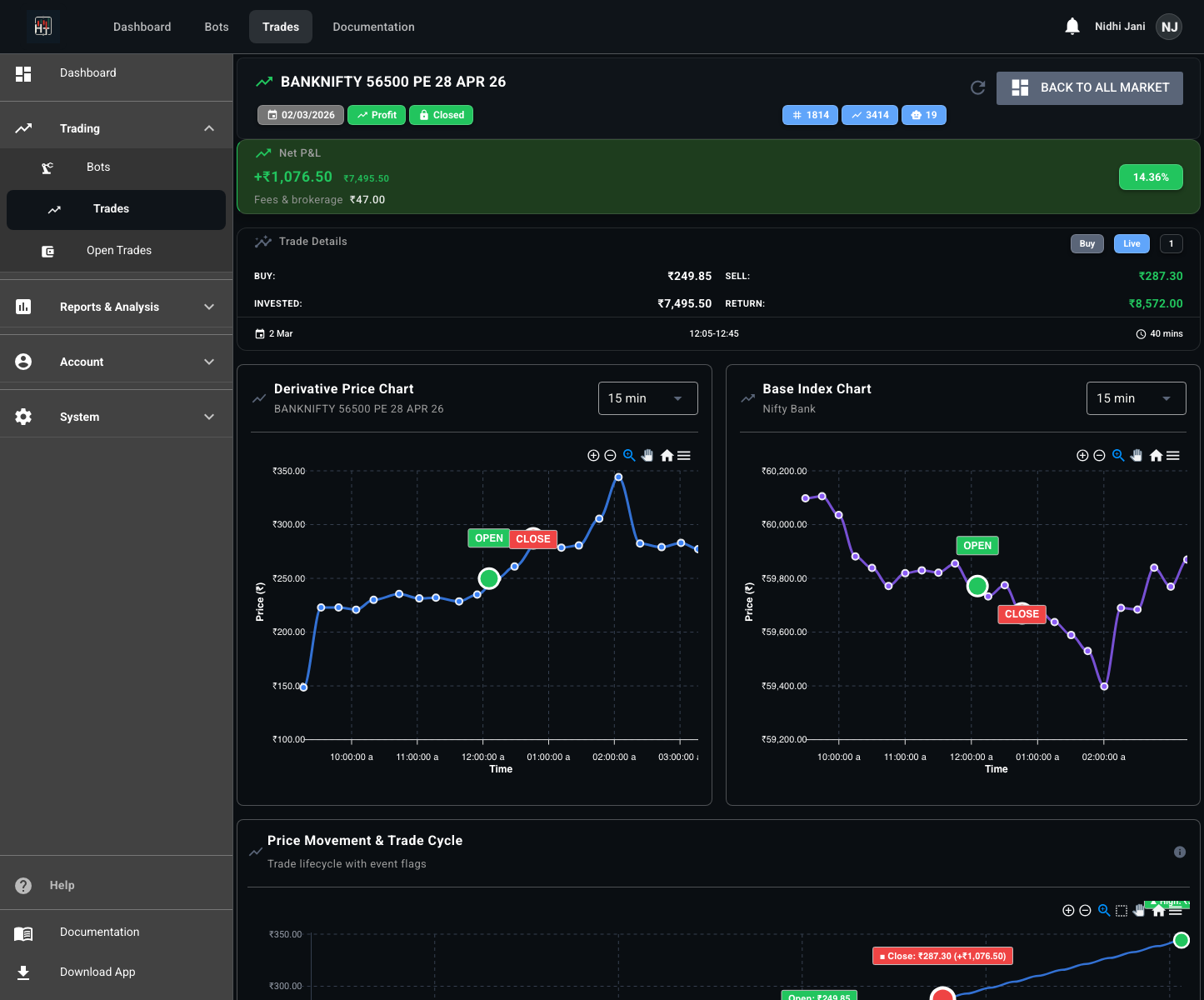
Trade detail – chart & timeline
Desktop
Mobile
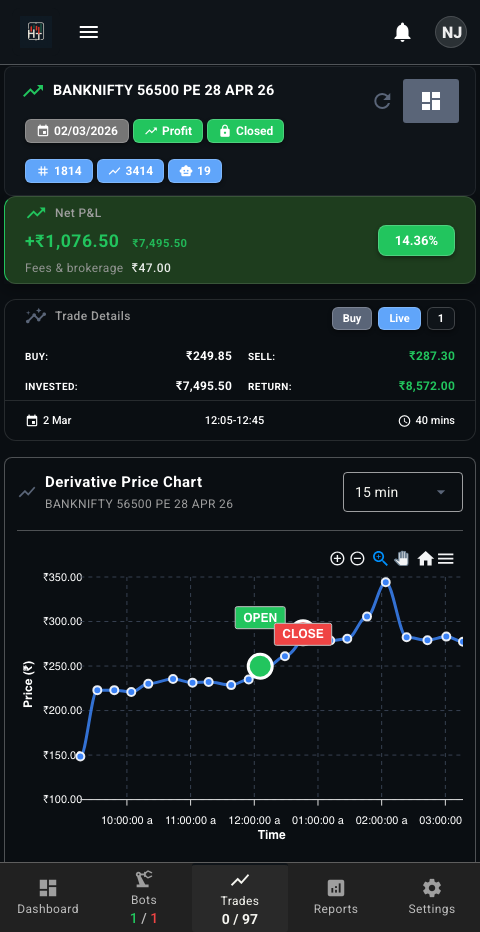
In the trade detail view you will usually see:
- An interactive price chart for the underlying during the entire trade lifecycle, with markers for open, close, min, and max prices.
- All relevant log events overlaid on the chart.
- A timeline view of events (open, logs, close) with badges you can click to inspect each step.
- Final P&L, holding time, and other summary metrics.