Dashboard Overview
Use this page to understand what each part of the dashboard means and what to check first before the market opens and while bots are running.
What You See After Opening the Dashboard
The dashboard is your “control room” for:
- Readiness: are accounts, tokens, and the market status OK?
- Performance: what’s your P&L today vs overall?
- Activity: which bots/trades are doing most of the work (good or bad)?
Screenshot (auto switches for mobile/desktop)
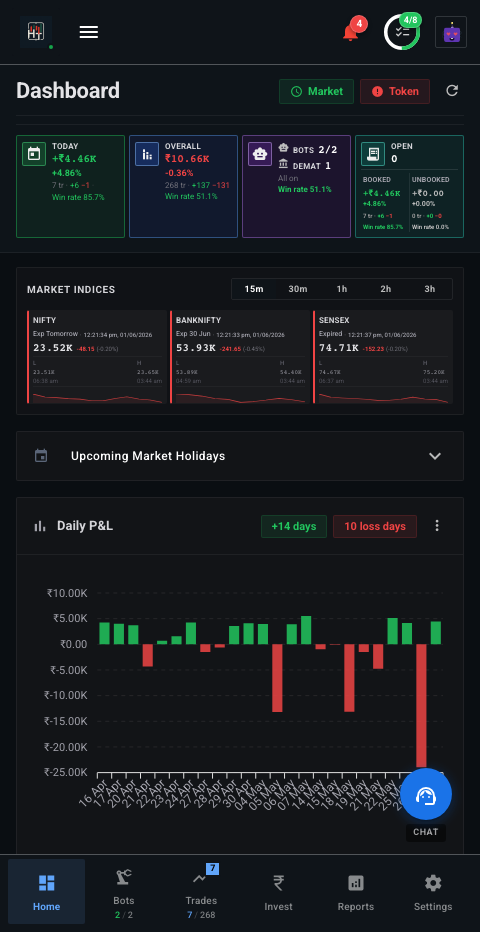
Quick checklist (takes ~30 seconds)
- Fix anything red in the status badges (token, accounts).
- Confirm Market Status matches reality (open/closed).
- Check Net P&L with the Today / Overall toggle.
- If something looks off, open Bots → the specific bot → Logs and Trades.
Main sections on this page
You’ll typically see these sections (exact layout may vary slightly):
- Navigation: links to Dashboard, Bots, Trades, Market, Reports, Settings, and Documentation.
- Summary cards: market indices, P&L cards, and active bot counts.
- Charts: performance over time (bots and open trades).
- Market snapshot: live index data (LTP, change, % change).
- Top performers / recent trades: fastest way to spot what’s driving your results.
Account Status Badges
These badges tell you whether the system is ready to trade. Treat them as pre-flight checks.
Status Indicators
- Demat Accounts: how many broker accounts are connected.
- Trading Bots: total bots configured in your account.
- Active Bots: bots currently running.
- Market Status: whether the market is open/closed.
- Access Token: whether your broker/API token is valid.
Important Notes
Attention: If a badge shows a warning (for example, an invalid access token), fix it before relying on bots. A bot can’t place orders if authentication is failing.
Profit & Loss Cards
The P&L cards are the fastest way to understand your current outcome.
P&L Metrics Explained
- Unbooked P&L: unrealized P&L from open positions.
- Booked P&L: realized P&L from closed trades.
- Net P&L: booked + unbooked combined.
What each card usually shows
- Capital invested
- P&L amount (₹)
- P&L %
- Color (green = profit, red = loss)
- Today / Overall toggle (daily vs all-time)
Market Snapshot & Charts
This area is for live context (market) and trend context (charts).
Market Snapshot
The market snapshot shows live values for major indices (for example Nifty 50, BankNifty):
- LTP: last traded price
- Net change: change from previous close
- % change: percent move
- Last updated: how fresh the data is
Performance Charts
The charts help you answer “is performance improving or degrading?”
- Bot P&L chart: cumulative performance across bots over time.
- Open trades P&L chart: real-time P&L across currently open positions.
- Tooltips / drill-down: hover/tap points to see exact numbers; open related pages for details.
Top Performers & Recent Trades
Use these lists to find what’s driving your P&L without hunting through every bot.
Top Performing Bots
- Top gaining bots: best contributors.
- Top losing bots: where to investigate first.
Each row typically includes P&L, trades count, and a shortcut to open the bot.
Top Performing Trades
- Top gaining trades: best single trades.
- Top losing trades: biggest losses to review.
Open a trade to see its timeline and logs (what happened, and when).
Navigation
Use View all bots and View all trades when you need filters, search, or a complete list.
Dashboard Controls & Utilities
These controls help you change what you’re looking at and how often it refreshes.
Time View Controls
- Today / Overall: changes cards and charts between today-only and all history.
Account Management
- Token validation: if your access token is invalid, use the dashboard button to re-authenticate.
Data Refresh
- Manual refresh: pull the latest data now.
- Auto-refresh: keeps the page updated (configured in Settings).
Testing & Development
- Fake market / backtest (if enabled): paper trading and backtesting to validate strategies before live capital.
Additional Utilities
- Settings: dashboard and trading preferences.
- Notifications: alerts and system messages.
- Help / Documentation: in-app guides and workflows.